📑 इस Guide में क्या है:
YouTube Channel Banner इतना Important क्यों है?
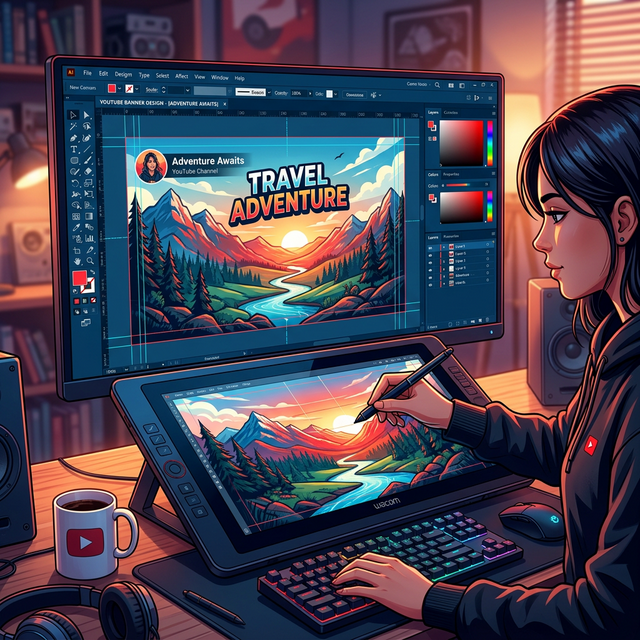
Channel Banner वह पहला visual है जो कोई भी viewer channel page खोलने पर देखता है। यह आपके channel का "Shopfront" है। सोचिए — कोई आपके channel पर आया, subscribe करे या न करे — यह decision बड़े हद तक Banner देखकर होता है।
1. Brand Identity बताता है — आपका channel किस topic पर है
2. Upload Schedule दिखाता है — कब नई video आएगी
3. Professional impression — "यह creator serious है"
एक well-designed banner के साथ channel visit करने वाले visitors के subscribe करने की probability 2x से 3x तक बढ़ जाती है।
YouTube Banner का Perfect Size और Safe Zone
यह सबसे critical part है। बहुत से creators banner बनाते हैं लेकिन mobile पर important text cut off हो जाता है — Safe Zone का ध्यान न रखने से।
📌 YouTube Channel Art — Official Specifications (2026):
🎯 Safe Zone को Visual में समझें:
🖥️ Full Canvas: 2560 × 1440px (TV पर दिखता है)
✅ SAFE ZONE: 1546 × 423px
सभी devices पर दिखता है
Channel Name, Tagline, Logo यहाँ रखें
Edges: Desktop पर दिखेगा, Mobile पर cut हो जाएगा
Canva से Free Professional Banner बनाएं — Step-by-Step
Canva में YouTube Channel Art template already 2560×1440px का होता है। Safe Zone guidelines भी built-in होती हैं:
-
1Canva.com खोलें और "YouTube Channel Art" सर्च करें
Home page के search bar में "YouTube Channel Art" type करें। Canva automatically 2560×1440px का canvas और hundreds of templates दिखाएगा।
- Filter लगाएं: "Free" → Only free templates दिखेंगे
- Niche के हिसाब से search करें: "Gaming Channel Art", "Cooking YouTube Banner"
-
2अपने Niche का Template चुनें
Template click करें — "Customize this template" press करें। यह automatically 2560×1440px के canvas पर open होगा।
- Gaming → Dark/Neon themes
- Cooking/Food → Warm, vibrant colors
- Finance/Education → Clean, professional blue/white
- Beauty/Lifestyle → Pink, purple, pastel tones
-
3Important Content को Safe Zone (Center) में रखें
Channel Name, Tagline, Upload Schedule — इन्हें center area में रखें। Canva में "Show Ruler" और "Show Guides" enable करें (File menu से) ताकि safe zone clearly दिखे।
-
4Brand Colors, Font, और Logo Add करें
Background color अपने channel logo के colors से match करें। Channel logo भी add करें (Uploads section से)।
- Font: Logo जैसा font use करें — consistency = branding
- Free images: Left panel → Photos → copyright-free images
- या Unsplash.com से high quality free images download करें
-
5Mobile Preview ज़रूर Check करें
Design complete होने पर top-right "Preview" button click करें। Mobile size में देखें — क्या all important text safe zone में है?
-
6PNG Download करें — Maximum Quality
Share → Download → File Type: PNG → Download press करें। PNG format banner के लिए best है।
- File size 6MB से कम रखें — compress करें अगर ज़रूरत हो (tinypng.com पर free)
- Resolution: Download पर "2560×1440" confirm करें
Professional Banner के 7 Golden Design Rules
Top YouTubers के banners को analyze करने पर ये 7 common patterns मिलते हैं — इन्हें follow करें:
-
एक Clear Message — Channel का Topic
Viewer को 3 seconds में पता चलना चाहिए — "यह channel किस topic पर है।" नाम + एक line tagline काफी है।
-
Upload Schedule ज़रूर लिखें
"New Video Every Sunday" या "हर गुरुवार नई Video" जैसी line subscribers को engaged रखती है। यह commitment दिखाता है।
-
Logo + Channel Name = Brand Identity
Banner में logo और channel name दोनों रखें। Logo consistent रखें — thumbnail, banner, social media सब पर same।
-
Maximum 2-3 Colors
ज़्यादा colors banner को भीड़भाड़ वाला बनाते हैं। Primary color, Secondary color, और Accent color — बस तीन।
-
High Quality Image Use करें
Blurry या pixelated images से बुरा impression पड़ता है। Free HD images: Unsplash.com, Pexels.com, Pixabay.com।
-
Mobile पर Test करें (सबसे ज़रूरी)
Banner design करने के बाद mobile से channel visit करें। 71% YouTube viewers mobile use करते हैं — mobile preview सबसे important है।
-
Seasonal Updates करते रहें
हर 3-6 महीने में banner update करें — नया visual refresh feel देता है। Festival season पर thematic banners बनाएं।
Upload Schedule Ideas — अपने Niche के लिए Best Lines
Banner पर Upload Schedule लिखना professional creators का सबसे effective trick है। यहाँ niche-wise ideas हैं — इनमें से copy करें या inspire लें:
4 और Free Banner Tools — Canva के Alternatives
Adobe का official free tool। YouTube Channel Art template available है। Canva जितना ही powerful — Adobe fonts और assets भी मिलते हैं।
Free Plan उपलब्धSpecifically YouTube Banner के लिए बना tool। Safe zone guide built-in है। 5000+ free templates।
Free 3 Downloads/MonthMobile से banner बनाने का best tool। Android और iOS दोनों पर available। Custom canvas size set करें 2560×1440।
Free (App)Online photo editor जिसमें YouTube Banner का ready-made template है। Background removal और AI enhancement features भी free हैं।
Free Basic PlanYouTube पर Channel Banner Upload कैसे करें
-
1YouTube Studio खोलें
Browser में studio.youtube.com type करें → अपने account से login करें।
-
2Customization → Branding पर जाएं
Left sidebar में "Customization" click करें → Top में "Branding" tab select करें।
-
3Banner Image Upload करें
"Banner Image" section में → "Upload" click करें → अपना PNG/JPG file select करें।
-
4Preview Check करें — Desktop, Mobile, TV
YouTube automatically 3 preview modes दिखाएगा। Mobile view में ज़रूर check करें — safe zone sahi है तो all clear।
-
5Publish करें
Top-right में "Publish" click करें। तुरंत channel पर banner update हो जाएगा।
👉 Next Step: Channel Verify करें — Custom Thumbnail Enable करने के लिए
🗺️ Banner Set हो गया? अगला कदम:
🚀 Channel पूरी तरह Brand-Ready हो गई!
Logo + Banner + Description — सब तैयार है। अब असली challenge — पहले 1000 Subscribers और 4000 Watch Hours। Creator Growth eBook में यही सब fastest तरीके हैं।
eBook Unlock करें — सिर्फ ₹189